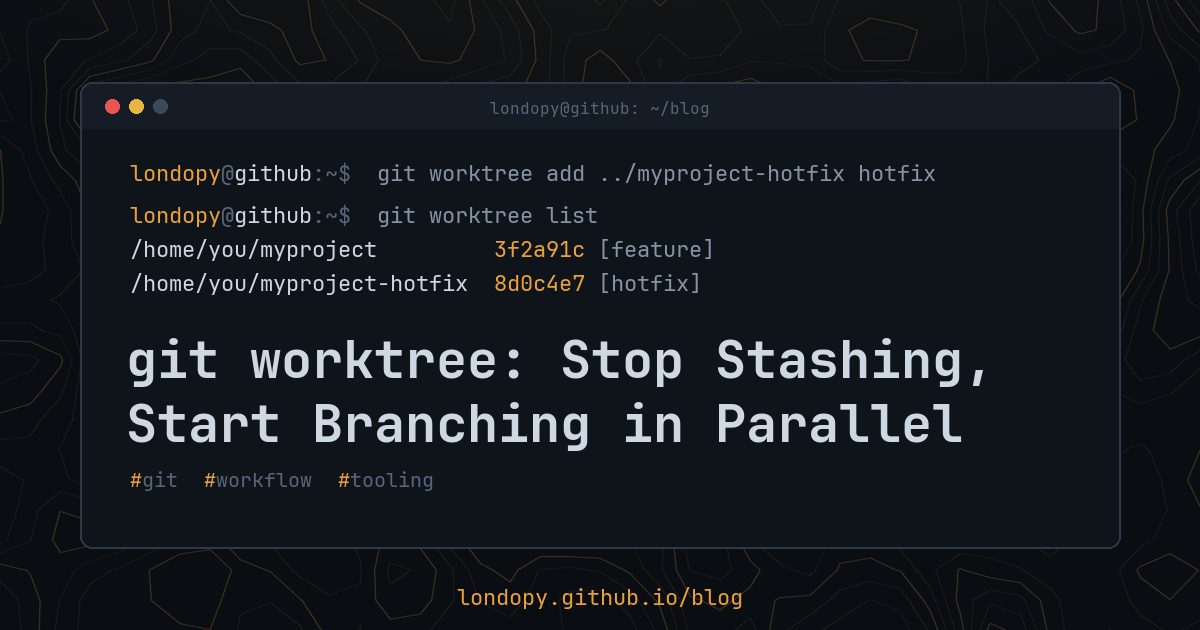
You’re halfway through a feature. Files are open, tests are half-written, nothing compiles. Then someone says: “Production is broken, can you look?”
Most people do one of these:
git stash, switch branches, fix, switch back,git stash pop, pray.- Commit a “WIP” mess they’ll have to clean up later.
- Clone the whole repo again into another folder.
There’s a better option that has been in Git since 2015: worktrees.
What a worktree is
A normal repo has one working directory: the folder where your files live. A worktree is an extra working directory attached to the same repo. Each one can have a different branch checked out, and they all share the same history, objects, and remotes.
It’s like a second clone, except:
- It’s instant. Nothing is downloaded or copied.
- It uses almost no extra disk space for history.
- A commit made in one worktree is immediately visible from the others.
The basics
Create a worktree for an existing branch:
git worktree add ../myproject-hotfix hotfix
Now ../myproject-hotfix is a full working folder with the hotfix branch checked out. Your original folder is untouched, half-finished feature and all.
Create a worktree and a new branch at the same time:
git worktree add -b fix-login ../myproject-fix-login main
That makes a new branch fix-login starting from main, checked out in a new folder.
See all your worktrees:
git worktree list
When you’re done, remove it:
git worktree remove ../myproject-hotfix
If you deleted a worktree folder by hand instead, clean up Git’s records of it:
git worktree prune
Daily uses
Emergency fixes without disruption. The scenario above. Your feature work stays exactly where you left it.
Reviewing a pull request while you keep working. Check out the PR branch in its own worktree, run it, test it, and delete the folder when you’re done.
Comparing behavior side by side. Run the old version and the new version at the same time in two terminals.
Long builds. Kick off a slow build or test suite in one worktree and keep coding in another. Your edits won’t change files out from under the running build.
Running AI coding agents in parallel. Give each agent its own worktree so they don’t overwrite each other’s changes.
Things you should know
One branch, one worktree. Git won’t let you check out the same branch in two worktrees at once, because commits in one would confuse the other. If you try, you’ll get an error. (There’s a --force flag, but you almost never want it.)
Some things are shared, some aren’t. Commits, branches, tags, remotes, config, and the stash are shared across all worktrees. The working files, the index (staging area), and HEAD are per-worktree.
Untracked files don’t come along. A new worktree starts clean. Your .env, node_modules, or build folders from the main worktree won’t be there. You’ll need to reinstall dependencies or copy config.
Keep worktrees outside the main folder. Putting a worktree inside your main working directory makes tools, file watchers, and searches see duplicate files. A sibling folder (../project-something) is the usual convention.
Lock worktrees on removable drives. If a worktree lives on a USB drive or network share that isn’t always mounted, lock it so prune doesn’t delete its records:
git worktree lock ../usb-worktree --reason "on external drive"
A bare-repo trick
Some people go further: they clone a repo as bare (no working files at all) and do everything through worktrees:
git clone --bare git@github.com:you/project.git project/.bare
cd project
echo "gitdir: ./.bare" > .git
git config remote.origin.fetch "+refs/heads/*:refs/remotes/origin/*"
git fetch
git worktree add main
git worktree add feature-x
The git config line matters. A bare clone doesn’t set up remote-tracking branches, so without it, git fetch quietly never updates them.
Now every branch you work on is a tidy subfolder of project/. It takes a little getting used to, but it makes “which branch am I on?” a question your file manager answers.
Closing thought
git stash is fine for thirty seconds. For anything longer, stop juggling and give each branch its own folder.